Dank16
██████╗  █████╗ ███╗   ██╗██╗  ██╗ ██╗ ██████╗
██╔══██╗██╔══██╗████╗  ██║██║ ██╔╝███║██╔════╝
██║  ██║███████║██╔██╗ ██║█████╔╝ ╚██║███████╗
██║  ██║██╔══██║██║╚██╗██║██╔═██╗  ██║██╔═══██╗
██████╔╝██║  ██║██║ ╚████║██║  ██╗ ██║╚██████╔╝
╚═════╝ ╚═╝  ╚═╝╚═╝  ╚═══╝╚═╝  ╚═╝ ╚═╝ ╚═════╝
The dms dank16 command generates complete Base16 color palettes from a single input color. It creates harmonious 16-color terminal themes with proper contrast ratios for both light and dark modes.
Overview
Dank16 takes a single hex color and generates a full Base16-compatible palette suitable for terminals, editors, and other applications. The algorithm intelligently derives complementary colors while ensuring all colors meet contrast requirements for readability.
Key Features:
- Generate complete 16-color palettes from one color
- Support for both dark and light themes
- Advanced contrast algorithms (Delta Phi Star or WCAG)
- Multiple output formats (terminal configs, JSON, VSCode)
- Custom background color support
Quick Start
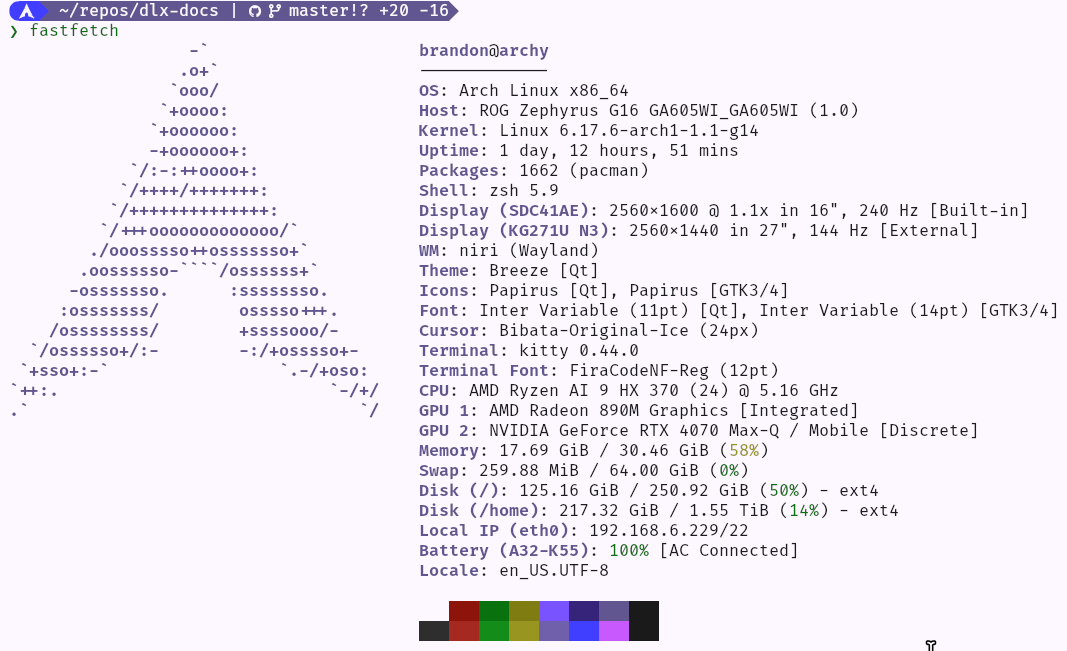
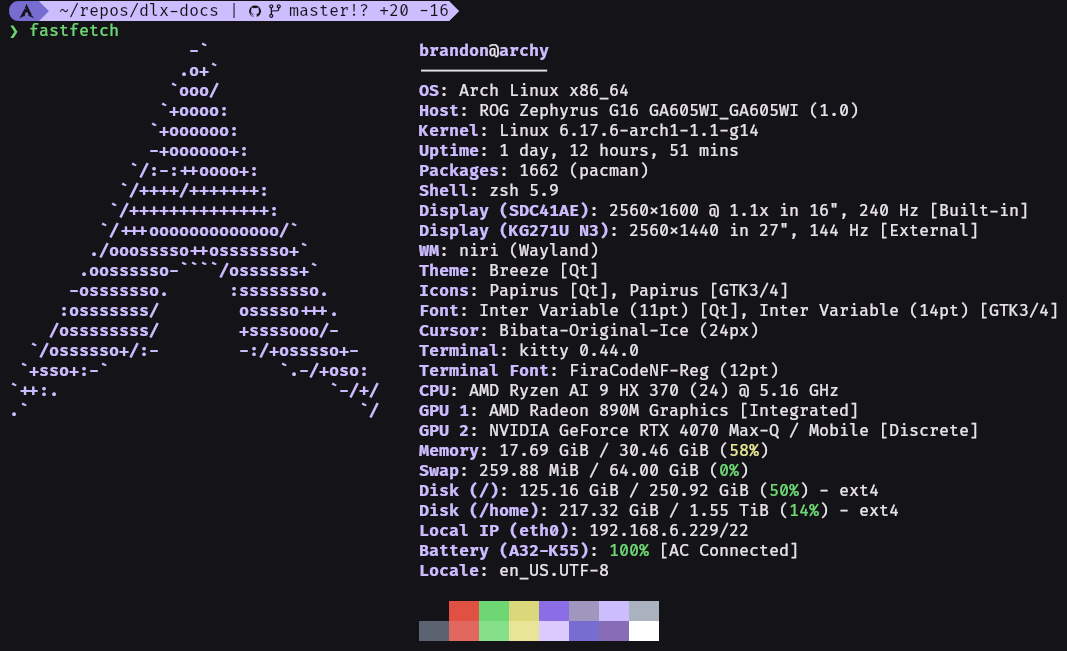
Generate a dark theme palette:
dms dank16 "#8b5cf6"
Output:
palette = 0=#1a1a1a
palette = 1=#e25443
palette = 2=#6ed675
palette = 3=#dbd97b
palette = 4=#9a65fd
palette = 5=#9173d2
palette = 6=#9565ff
palette = 7=#abb2bf
palette = 8=#5c6370
palette = 9=#e06a5f
palette = 10=#86e08b
palette = 11=#e8e697
palette = 12=#e5c7ff
palette = 13=#8269d9
palette = 14=#9069c0
palette = 15=#ffffff
Generate a light theme palette:
dms dank16 "#8b5cf6" --light
Base16 Color Mapping
The generated palette follows the standard Base16 specification:
| Index | Purpose | Dark Theme | Light Theme |
|---|---|---|---|
| 0 | Background | Dark gray | Light gray |
| 1 | Red | Saturated red | Dark red |
| 2 | Green | Saturated green | Dark green |
| 3 | Yellow | Saturated yellow | Dark yellow |
| 4 | Blue | Derived from input | Derived from input |
| 5 | Magenta | Derived from input | Derived from input |
| 6 | Cyan | Derived from input | Derived from input |
| 7 | Foreground | Light gray | Dark gray |
| 8 | Bright Black | Medium gray | Dark gray |
| 9 | Bright Red | Lighter red | Medium red |
| 10 | Bright Green | Lighter green | Medium green |
| 11 | Bright Yellow | Lighter yellow | Medium yellow |
| 12 | Bright Blue | Lighter variant | Lighter variant |
| 13 | Bright Magenta | Lighter variant | Lighter variant |
| 14 | Bright Cyan | Lighter variant | Lighter variant |
| 15 | Bright White | White | Black |
Output Formats
Default Format
The default output is a simple palette format:
dms dank16 "#8b5cf6"
Kitty Terminal
dms dank16 "#8b5cf6" --kitty
Output:
color0   #1a1a1a
color1   #e25443
color2   #6ed675
color3   #dbd97b
...
Copy the output directly to your ~/.config/kitty/kitty.conf.
Foot Terminal
dms dank16 "#8b5cf6" --foot
Generates color configuration for the Foot terminal emulator.
Alacritty Terminal
dms dank16 "#8b5cf6" --alacritty
Generates YAML configuration for Alacritty's color scheme.
Ghostty Terminal
dms dank16 "#8b5cf6" --ghostty
Generates configuration for the Ghostty terminal emulator.
JSON Format
dms dank16 "#8b5cf6" --json
Outputs the palette as a JSON object with detailed color information.
Variants Format
dms dank16 "#8b5cf6" --variants [--light] [--background <color>]
Outputs all color variants in a single call:
{
  "color0": {
    "dark": { "hex": "#1a1a1a", "hex_stripped": "1a1a1a" },
    "light": { "hex": "#f8f8f8", "hex_stripped": "f8f8f8" },
    "default": { "hex": "#1a1a1a", "hex_stripped": "1a1a1a" }
  },
  ...
}
| Variant | Description |
|---|---|
dark | Always dark mode colors |
light | Always light mode colors |
default | Mode-aware (uses --light flag to determine which variant) |
Use --primary-dark and --primary-light to specify different primary colors for each mode:
dms dank16 --variants --primary-dark "#8b5cf6" --primary-light "#6d28d9"
This is the format injected into matugen templates as the dank16 object.
Contrast Algorithms
Dank16 supports two contrast algorithms to ensure readability:
Delta Phi Star (DPS) - Default
The default algorithm uses Delta Phi Star contrast, which provides perceptually uniform contrast based on the golden ratio (phi). This algorithm:
- Uses CIELAB color space for perceptual accuracy
- Applies golden ratio (φ ≈ 1.618) calculations for harmonious contrast
- Targets minimum Lc (lightness contrast) values of 40 for normal text and 35 for secondary text
- Adjusts for negative polarity in dark themes
dms dank16 "#8b5cf6" --contrast dps
How it works:
- Converts colors to CIELAB space (L*, a*, b*)
- Calculates lightness contrast using:
Lc = (|Lb^φ - Lf^φ|)^(1/φ) × 1.414 - 40 - Adjusts for polarity (+5 for dark mode)
- Ensures minimum contrast thresholds are met
WCAG Contrast
Uses the standard WCAG 2.1 contrast ratio algorithm:
- Targets minimum ratios of 4.5:1 for normal text and 3.0:1 for secondary text
- Based on relative luminance calculations
- Industry standard for accessibility compliance
dms dank16 "#8b5cf6" --contrast wcag
Advanced Options
Custom Background
Specify a custom background color instead of the default:
# Dark theme with custom background
dms dank16 "#8b5cf6" --background "#0d1117"

# Light theme with custom background
dms dank16 "#8b5cf6" --light --background "#ffffff"
Combining Options
All options can be combined:
dms dank16 "#8b5cf6" \
  --light \
  --background "#fafafa" \
  --contrast wcag \
  --kitty > ~/.config/kitty/dank-light.conf
Algorithm Overview
The palette generation process follows these steps:
-
Container Derivation: Derives a container color from the input by adjusting saturation and value based on theme mode
-
Color Generation: Creates the core palette colors:
- Red, green, yellow: Generated with hue shifts and saturation adjustments
- Blue, magenta, cyan: Derived from the input color with variations
- Foreground/background: Set based on theme mode
-
Contrast Enforcement: Each color is adjusted to meet minimum contrast requirements:
- Converts to HSV or CIELAB color space
- Incrementally adjusts lightness/value until contrast threshold is met
- Preserves hue to maintain color identity
-
Bright Variants: Generates brighter versions for colors 9-14:
- Dark mode: Uses L* retoning to ensure high visibility
- Light mode: Reduces saturation and adjusts value for subtle contrast
Use Cases
Terminal Theming
Generate consistent color schemes for your terminal:
# Kitty
dms dank16 "#your-color" --kitty >> ~/.config/kitty/kitty.conf

# Foot
dms dank16 "#your-color" --foot >> ~/.config/foot/foot.ini

# Alacritty
dms dank16 "#your-color" --alacritty >> ~/.config/alacritty/alacritty.yml
Editor Themes
VSCode and other editors get their terminal colors automatically through DMS's built-in theming. The dank16 palette is also available in your custom matugen templates via the dank16 object—see the Application Theming docs for details.
Dynamic Theming
Generate themes based on wallpaper colors or system accents:
#!/bin/bash
# Extract dominant color from wallpaper
dominant_color=$(your-color-extraction-tool ~/wallpaper.jpg)

# Generate and apply terminal theme
dms dank16 "$dominant_color" --kitty > ~/.config/kitty/auto-theme.conf
kitty @ set-colors -a ~/.config/kitty/auto-theme.conf
Light/Dark Mode Automation
Create matching light and dark variants:
#!/bin/bash
COLOR="#8b5cf6"

# Generate both variants
dms dank16 "$COLOR" --kitty > ~/.config/kitty/dank-dark.conf
dms dank16 "$COLOR" --light --kitty > ~/.config/kitty/dank-light.conf

# Switch based on time or system setting
if is_dark_mode; then
    kitty @ set-colors -a ~/.config/kitty/dank-dark.conf
else
    kitty @ set-colors -a ~/.config/kitty/dank-light.conf
fi
Tips & Best Practices
Choosing Input Colors
Choose an input color that you want to be prominent in your terminal. The input color will be most directly represented as the blue/cyan colors (palette indices 4, 6, 12, 14) in the output, with other colors derived as complementary hues. True red, green, and yellow will still be represented in the appropriate position.
Testing Contrast
After generating a palette, test it with actual terminal applications:
# Generate palette
dms dank16 "#8b5cf6" --kitty > /tmp/test-theme.conf

# Open new kitty window with theme
kitty -o include=/tmp/test-theme.conf
Iterating on Themes
Try slight variations of your input color to find the perfect palette:
# Try different shades
dms dank16 "#8b5cf6"  # Original
dms dank16 "#9b6cf6"  # Slightly lighter
dms dank16 "#7b4ce6"  # Slightly darker
Command Reference
dms dank16 <hex_color> [flags]
Arguments:
hex_color(required): Input color in hex format (e.g., "#8b5cf6" or "8b5cf6")
Flags:
--light: Generate light theme variant (default: dark)--background <hex>: Custom background color--contrast <algorithm>: Contrast algorithm - "dps" or "wcag" (default: "dps")--kitty: Output in Kitty terminal format--foot: Output in Foot terminal format--alacritty: Output in Alacritty terminal format--ghostty: Output in Ghostty terminal format--json: Output as JSON object with hex, hex_stripped, and RGB values--variants: Output all variants (dark/light/default) as JSON--primary-dark <hex>: Primary color for dark mode (use with--variants)--primary-light <hex>: Primary color for light mode (use with--variants)--wezterm: Output in Wezterm terminal format-h, --help: Show help