Application Theming
████████╗██╗  ██╗███████╗███╗   ███╗███████╗███████╗
╚══██╔══╝██║  ██║██╔════╝████╗ ████║██╔════╝██╔════╝
   ██║   ███████║█████╗  ██╔████╔██║█████╗  ███████╗
   ██║   ██╔══██║██╔══╝  ██║╚██╔╝██║██╔══╝  ╚════██║
   ██║   ██║  ██║███████╗██║ ╚═╝ ██║███████╗███████║
   ╚═╝   ╚═╝  ╚═╝╚══════╝╚═╝     ╚═╝╚══════╝╚══════╝
DankMaterialShell automatically generates theme files for native applications when matugen is enabled. These files are created on wallpaper changes and theme switches.
Disabling Matugen
Set the environment variable DMS_DISABLE_MATUGEN to 1 or true before launching to disable theme generation entirely.
For detailed instructions on setting environment variables, see Advanced Configuration - Setting Environment Variables.
Custom Matugen Templates
You can add your own matugen templates to theme additional applications. Templates must use absolute paths and be defined under the [config] section. DMS will execute these templates alongside its built-in templates.
See the matugen wiki for full configuration and templating options.
Create or edit ~/.config/matugen/config.toml:
[config]

[templates.mytemplate]
input_path = '/home/username/.config/matugen/templates/mytemplate.toml'
output_path = '/home/username/.local/share/mytemplate/themes/matugen.toml'

[templates.myapp]
input_path = '/home/username/.config/matugen/templates/myapp.conf'
output_path = '/home/username/.config/myapp/colors.conf'
Available Template Variables
Your templates have access to all standard matugen color keywords, plus DMS provides the full dank16 palette for terminal and editor theming.
dank16 Color Structure
dank16 colors use a variant structure matching the material color system:
{{dank16.color0.default.hex}}
{{dank16.color0.dark.hex}}
{{dank16.color0.light.hex}}
| Variant | Use Case |
|---|---|
.default | Mode-aware colors (recommended for most uses) |
.dark | Always dark, regardless of system mode |
.light | Always light, regardless of system mode |
Each variant includes hex and hex_stripped values.
Terminal Templates
Terminal templates should use .default variants. The Terminals - Always use Dark Theme setting automatically substitutes .default with .dark at build time for terminal configs (kitty, alacritty, ghostty, foot, wezterm).
Here's an example kitty template using both matugen colors and dank16:
cursor                {{colors.on_surface.default.hex}}
cursor_text_color     {{colors.on_surface_variant.default.hex}}

foreground            {{colors.on_surface.default.hex}}
background            {{colors.background.default.hex}}
selection_foreground  {{colors.on_secondary.default.hex}}
selection_background  {{colors.secondary_fixed_dim.default.hex}}
url_color             {{colors.primary.default.hex}}

color0   {{dank16.color0.default.hex}}
color1   {{dank16.color1.default.hex}}
color2   {{dank16.color2.default.hex}}
color3   {{dank16.color3.default.hex}}
color4   {{dank16.color4.default.hex}}
color5   {{dank16.color5.default.hex}}
color6   {{dank16.color6.default.hex}}
color7   {{dank16.color7.default.hex}}
color8   {{dank16.color8.default.hex}}
color9   {{dank16.color9.default.hex}}
color10  {{dank16.color10.default.hex}}
color11  {{dank16.color11.default.hex}}
color12  {{dank16.color12.default.hex}}
color13  {{dank16.color13.default.hex}}
color14  {{dank16.color14.default.hex}}
color15  {{dank16.color15.default.hex}}
Migration
Update custom matugen templates from the old format:
- {{dank16.color0.hex}}
+ {{dank16.color0.default.hex}}
Important notes:
- Use absolute paths, not relative paths like
./templates/ - All template definitions must be under the
[config]section - Templates regenerate on wallpaper changes and theme switches
Generated Files
When matugen is enabled, theme files are always generated regardless of the "Apply GTK/Qt Themes" toggle:
~/.config/gtk-3.0/dank-colors.css~/.config/gtk-4.0/dank-colors.css~/.config/qt5ct/colors/matugen.conf~/.config/qt6ct/colors/matugen.conf
The "Apply GTK/Qt Themes" toggles only control whether DankMaterialShell manages the symlinks to make applications use these files.
GTK Applications
Install Prerequisites
# Arch
sudo pacman -S adw-gtk-theme

# Fedora
sudo dnf install adw-gtk3-theme
Enable via Settings
- Open Settings → Theme & Colors
- Toggle Apply GTK Themes
This creates symlinks from dank-colors.css to gtk.css, enabling dynamic theming for GTK 3 and GTK 4 applications.
Manual Integration
If you manage your own GTK theme but want DMS colors:
/* In ~/.config/gtk-3.0/gtk.css or gtk-4.0/gtk.css */
@import url("dank-colors.css");
Qt Applications
Qt theming offers two approaches: basic GTK passthrough or dedicated Qt control.
If you installed via dankinstall or manage DMS with systemd, set environment variables in ~/.config/environment.d/90-dms.conf. For example, to switch to qt6ct:
QT_QPA_PLATFORMTHEME=qt6ct
Log out and back in for changes to take effect.
You can also run systemctl --user edit dms and add Environment=QT_QPA_PLATFORMTHEME=qt6ct under [Service]. This only affects DMS and apps it launches, whereas 90-dms.conf applies to all user sessions.
Option 1: GTK Passthrough (Simple)
Best for users who primarily run GTK applications. Qt apps will use the GTK theme. This is the default for dankinstall setups.
niri Configuration:
environment {
  QT_QPA_PLATFORMTHEME "gtk3"
  QT_QPA_PLATFORMTHEME_QT6 "gtk3"
}
Hyprland Configuration:
env = QT_QPA_PLATFORMTHEME,gtk3
env = QT_QPA_PLATFORMTHEME_QT6,gtk3
Option 2: Dedicated Qt Control (Advanced)
Provides better Qt integration and more styling control.
Install qt6ct:
# Arch
paru -S qt6ct-kde

# Fedora
sudo dnf install qt6ct

# Other distributions
# Follow instructions at https://www.opencode.net/trialuser/qt6ct
Configure Environment:
If you manage DMS with systemd (including dankinstall users), edit ~/.config/environment.d/90-dms.conf:
QT_QPA_PLATFORMTHEME=qt6ct
You can also run systemctl --user edit dms and add Environment=QT_QPA_PLATFORMTHEME=qt6ct under [Service]. This only affects DMS and apps it launches, whereas 90-dms.conf applies to all user sessions.
Setting QT_QPA_PLATFORMTHEME in environment.d will break KDE/Plasma sessions. Instead, use systemctl --user edit dms and add the environment variable there:
systemctl --user edit dms
Add the following:
[Service]
Environment=QT_QPA_PLATFORMTHEME=qt6ct
Then restart:
systemctl --user restart dms.service
Otherwise, add to your compositor config:
niri:
environment {
  QT_QPA_PLATFORMTHEME "qt6ct"
  QT_QPA_PLATFORMTHEME_QT6 "qt6ct"
}
Hyprland:
env = QT_QPA_PLATFORMTHEME,qt6ct
env = QT_QPA_PLATFORMTHEME_QT6,qt6ct
Enable Qt Theming:
- Log out and back in (for environment.d changes) or restart your compositor
- Open Settings → Theme & Colors
- Toggle Apply Qt Themes
This links the generated matugen color files to qt5ct/qt6ct configurations.
Dolphin File Manager
Dolphin requires qt6ct-kde (not standard qt6ct) for proper color theming. With standard qt6ct, Dolphin's colors will render poorly.
With qt6ct-kde installed:
Set the color scheme to Dank Shell (matugen) in qt6ct's Appearance tab under KColorScheme.
Alternative (if qt6ct-kde is unavailable):
Create ~/.config/dolphinrc:
[UiSettings]
ColorScheme=DankMatugen
Firefox
Firefox has two theme integration options: Material Fox or Pywalfox.
Option 1: Material Fox (Chrome-like with Dynamic Colors)
Firefox uses GTK3 theming but a separate matugen CSS is generated for better integration with Material Fox.
Enable Custom Styles in Firefox:
Navigate to about:config and set:
toolkit.legacyuserprofilecustomizations.stylesheets=truesvg.context-properties.content.enabled=true
Create new boolean property:
userChrome.theme-material=true
Install Material Fox Theme:
# Find Firefox profile directory
export PROFILE_DIR=$(find ~/.mozilla/firefox -maxdepth 1 -type d -name "*.default-release" | head -n 1)

# Download and extract theme
curl -L -o "$PROFILE_DIR/chrome.zip" https://github.com/edelvarden/material-fox-updated/releases/download/v2.0.0/chrome.zip
unzip -o "$PROFILE_DIR/chrome.zip" -d "$PROFILE_DIR"
rm "$PROFILE_DIR/chrome.zip"
Link Dynamic Colors:
export PROFILE_DIR=$(find ~/.mozilla/firefox -maxdepth 1 -type d -name "*.default-release" | head -n 1)
rm -f "$PROFILE_DIR/chrome/theme-material-blue.css"
ln -sf ~/.config/DankMaterialShell/firefox.css "$PROFILE_DIR/chrome/theme-material-blue.css"
Restart Firefox to apply changes.
Option 2: Pywalfox
Install Pywalfox:
# Arch
paru -S python-pywalfox

# Other distributions
# Install from https://github.com/Frewacom/pywalfox
Install Browser Extension:
Install the Pywalfox extension from Firefox Add-ons.
Enable DMS Colors:
ln -sf ~/.cache/wal/dank-pywalfox.json ~/.cache/wal/colors.json
Restart DMS to generate the palette, then enable Pywalfox in the browser.
Zen Browser
Zen Browser handles theming differently from Firefox—Pywalfox and Firefox theme extensions no longer work. Theming is controlled via userChrome.css in the profile directory.
DMS generates ~/.config/DankMaterialShell/zen.css automatically. Link it to your Zen profile:
# Find default profile directory
export PROFILE_DIR=$(find ~/.zen -maxdepth 1 -type d -name "*.Default Profile" | head -n 1)
mkdir -p "$PROFILE_DIR/chrome"
ln -sf ~/.config/DankMaterialShell/zen.css "$PROFILE_DIR/chrome/userChrome.css"
Theming must be enabled in Zen browser for changes to userChrome.css to take effect! Open about:config and enable toolkit.legacyUserProfileCustomizations.stylesheets. Restart your browser.
Browser Tips
- Keep userChrome/userContent overrides under version control
- Disable conflicting theme extensions when using DMS-managed colors
Editors
Editors use a mix of dank16 and matugen to produce a colorful, theme-honoring template with contrast in the editor itself.
VSCode / Codium / Cursor / Windsurf
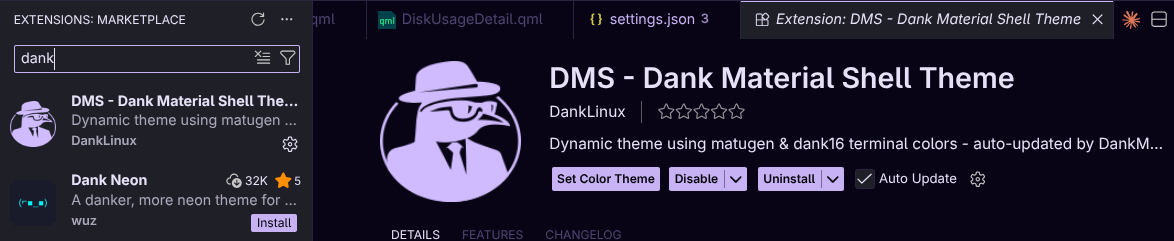
Install from the VS Code Marketplace by searching for "DMS - Dank Material Shell Theme":
Or install manually:
wget https://github.com/AvengeMedia/DankMaterialShell/raw/refs/heads/master/quickshell/matugen/dms-theme.vsix
code --install-extension dms-theme.vsix
# or: codium / cursor / windsurf --install-extension ...
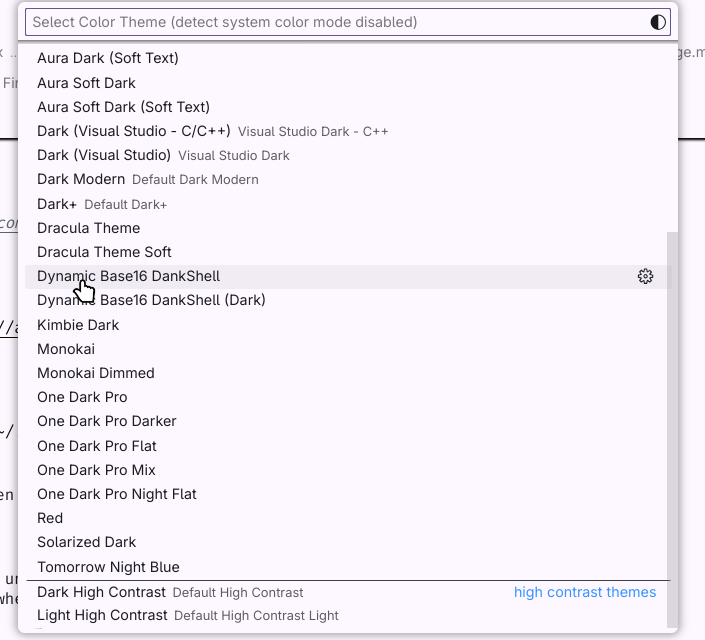
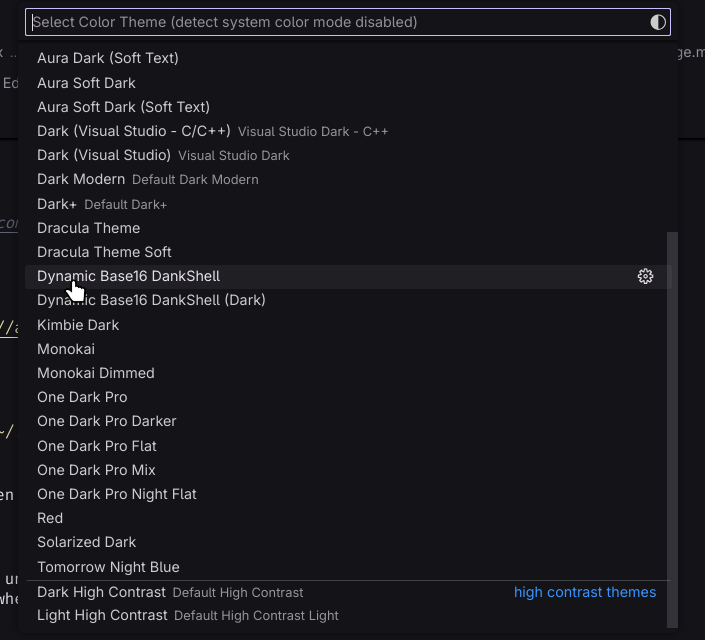
Activate: Open command palette (Ctrl+Shift+P), select Preferences: Color Theme, choose Dynamic Base16 DankShell (or DMS - Dank Material Shell in 1.2).
Trigger colors: Restart DMS or change wallpaper/theme to generate dynamic colors.
Terminal Applications
Terminal editors use a custom dank16 algorithm alongside matugen to generate a palette that honors the theme aesthetic while also providing 16 ansi colors.
Ghostty
echo "theme = dankcolors" >> ~/.config/ghostty/config
Optional - disable excessive notifications:
echo "app-notifications = no-clipboard-copy,no-config-reload" >> ~/.config/ghostty/config
kitty
echo "include dank-tabs.conf" >> ~/.config/kitty/kitty.conf
echo "include dank-theme.conf" >> ~/.config/kitty/kitty.conf
If you have customized the kitty theme, kitty may save dark-theme.auto.conf, light-theme.auto.conf, no-preference-theme.auto.conf in the configuration directory (usually ~/.config/kitty). Please delete them to make the theme take effect.
foot
foot requires absolute paths in its configuration, edit ~/.config/foot/foot.ini to add the include:
[main]
include=/home/<USERNAME>/.config/foot/dank-colors.ini
alacritty
Add the alacritty theme to your imports secton in ~/.config/alacritty/alacritty.toml
[general]
import = [
    "~/.config/alacritty/dank-theme.toml"
]
Reload or restart the terminal to apply colors.
Troubleshooting
GTK apps not themed:
- Verify
adw-gtk-themeis installed - Check that symlinks exist:
ls -la ~/.config/gtk-3.0/gtk.css - Ensure "Apply GTK Themes" is toggled in Settings
Qt apps not themed:
- Verify environment variables are set in compositor config
- Restart compositor session after changing environment
- Check
qt6ctis installed if using Option 2 - Ensure "Apply Qt Themes" is toggled in Settings
Firefox theme not working:
- Verify
about:configsettings are correct - Check that theme files exist in profile directory
- Try disabling other Firefox theme extensions
- Restart Firefox after making changes
Terminal colors not updating:
- Verify config lines are added to terminal config
- Check that theme files exist in
~/.config/DankMaterialShell/ - Restart terminal application