Keybinds & Cheatsheets
██╗  ██╗███████╗██╗   ██╗██████╗ ██╗███╗   ██╗██████╗ ███████╗
██║ ██╔╝██╔════╝╚██╗ ██╔╝██╔══██╗██║████╗  ██║██╔══██╗██╔════╝
█████╔╝ █████╗   ╚████╔╝ ██████╔╝██║██╔██╗ ██║██║  ██║███████╗
██╔═██╗ ██╔══╝    ╚██╔╝  ██╔══██╗██║██║╚██╗██║██║  ██║╚════██║
██║  ██╗███████╗   ██║   ██████╔╝██║██║ ╚████║██████╔╝███████║
╚═╝  ╚═╝╚══════╝   ╚═╝   ╚═════╝ ╚═╝╚═╝  ╚═══╝╚═════╝ ╚══════╝
The dms keybinds command provides a unified interface for viewing and managing keybinds across different applications. It can parse application-specific configurations (like Hyprland) and display user-defined cheatsheets in a consistent format.
Overview
The keybinds framework offers:
- Auto-discovery: Automatically finds keybinds from application configs
- Custom cheatsheets: Create JSON files for any application
- Multiple providers: Built-in support for Hyprland, Sway, MangoWC, labwc, and Miracle WM, with extensibility for other applications
- XDG compliance: Follows XDG Base Directory standards for config locations
Quick Start
List all available keybind providers:
dms keybinds list
# Alias options:
dms cheatsheet list
dms chsht list
Show keybinds for a specific application:
dms keybinds show hyprland
dms keybinds show sway
dms keybinds show mangowc
dms keybinds show tmux
dms keybinds show firefox
You can also display keybinds directly within DMS using IPC:
dms ipc call keybinds toggle hyprland
dms ipc call keybinds toggle sway
dms ipc call keybinds toggle <provider>
This opens a modal overlay showing the keybinds in the shell interface.
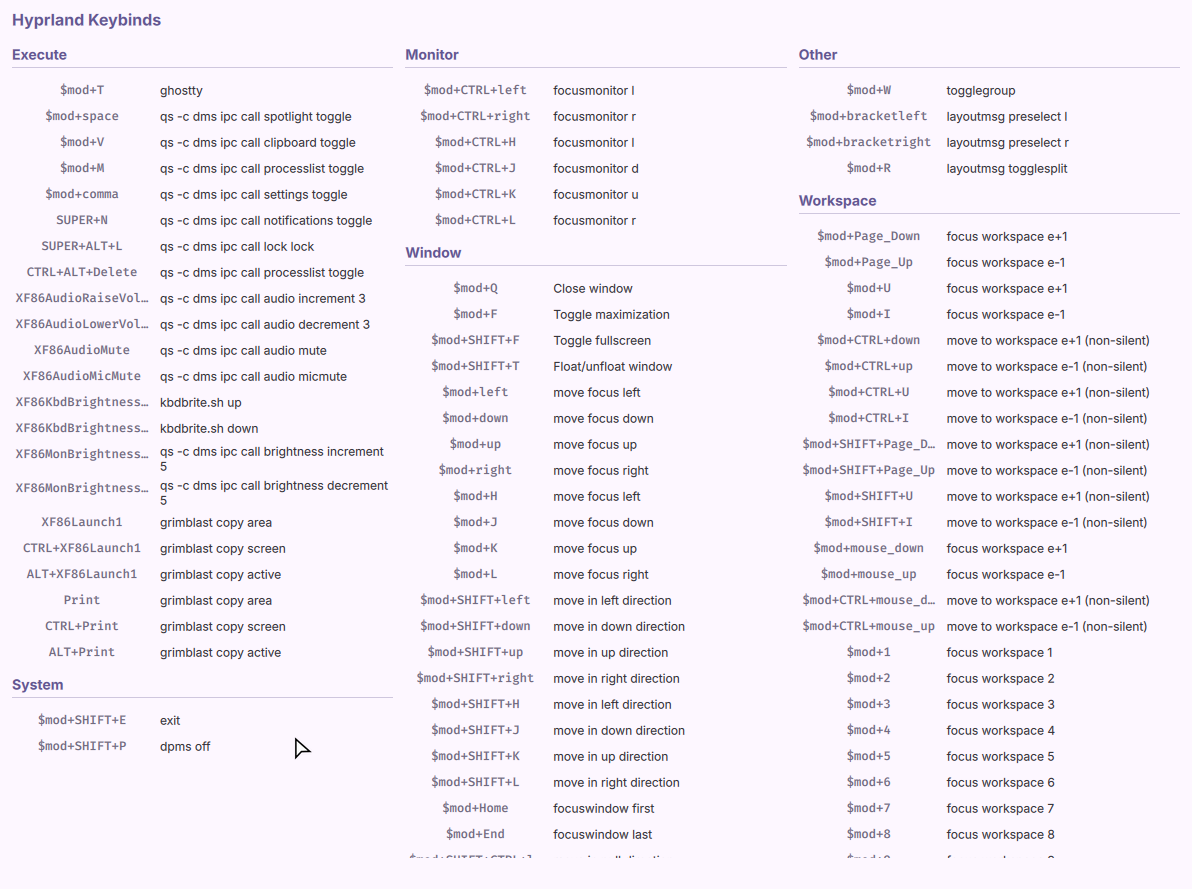

Built-in Providers
Hyprland
The Hyprland provider automatically parses your Hyprland configuration files and extracts keybinds.
Features:
- Parses all
*.conffiles in your Hyprland config directory - Supports section headers with
##!(categories) and###!(subcategories) - Auto-generates descriptions for common dispatchers
- Respects
[hidden]comments to exclude certain binds - Categorizes binds by type (Window, Workspace, Execute, etc.)
Usage:
# Use default Hyprland config path (~/.config/hypr)
dms keybinds show hyprland

# Specify custom path
dms keybinds show hyprland --path /path/to/hypr/config
Description Priority:
The provider generates descriptions in this order:
- Custom comment in your config (e.g.,
bind = SUPER, T, exec, kitty # Open terminal) - Auto-generated for known dispatchers (e.g.,
killactive→ "Close window") - Fallback format showing dispatcher and params (e.g.,
togglegroup)
Category Logic:
Binds are automatically categorized based on their dispatcher:
- Workspace: workspace navigation and management
- Monitor: monitor-related actions
- Window: window management (move, resize, focus, kill, etc.)
- Execute: launching applications and scripts
- System: system actions (exit, dpms, etc.)
- Other: miscellaneous dispatchers
Example Hyprland config:
##! Window Management
bind = SUPER, Q, killactive
bind = SUPER, F, fullscreen, 0

###! Movement
bind = SUPER, left, movefocus, l
bind = SUPER, right, movefocus, r

##! Workspaces
bind = SUPER, 1, workspace, 1
bind = SUPER, 2, workspace, 2

##! Applications
bind = SUPER, T, exec, kitty # Open terminal
bind = SUPER, E, exec, thunar # File manager
Sway
The Sway provider automatically parses your Sway configuration files and extracts keybinds.
Features:
- Parses the Sway config file (typically
~/.config/sway/config) - Supports section comments with
##!(categories) and###!(subcategories) - Auto-generates descriptions for common Sway commands
- Respects
[hidden]comments to exclude certain binds - Categorizes binds by type (Window, Workspace, Execute, etc.)
Usage:
# Use default Sway config path (~/.config/sway/config)
dms keybinds show sway

# Specify custom path
dms keybinds show sway --path /path/to/sway/config
Example Sway config:
##! Window Management
bindsym $mod+q kill
bindsym $mod+f fullscreen toggle

###! Movement
bindsym $mod+Left focus left
bindsym $mod+Right focus right

##! Workspaces
bindsym $mod+1 workspace number 1
bindsym $mod+2 workspace number 2

##! Applications
bindsym $mod+Return exec kitty # Open terminal
MangoWC
The MangoWC provider automatically parses your MangoWC (dwl) configuration and extracts keybinds.
Features:
- Parses MangoWC keybind definitions
- Supports section comments with
##!(categories) and###!(subcategories) - Auto-generates descriptions for common MangoWC actions
- Respects
[hidden]comments to exclude certain binds - Categorizes binds by type
Usage:
# Use default MangoWC config path
dms keybinds show mangowc

# Specify custom path
dms keybinds show mangowc --path /path/to/mangowc/config
Niri
The Niri provider parses KDL-format Niri configuration files and extracts keybinds. Unlike the other providers, Niri is writable—you can create and manage keybind overrides through DMS.
Features:
- Parses KDL-format config files
- Follows
includedirectives to merge all keybind sources - Supports DMS overrides via
~/.config/niri/dms/binds.kdl - Detects conflicts between DMS defaults and your binds
- Validates config before writing using
niri validate - Supports bind options:
repeat,cooldown-ms,allow-when-locked
Usage:
# Use default Niri config path (~/.config/niri)
dms keybinds show niri

# Specify custom config directory
dms keybinds show niri --path /path/to/niri/config
Writing Keybinds
Set overrides that get written to ~/.config/niri/dms/binds.kdl:
# Basic keybind
dms keybinds set niri "Mod+T" "spawn kitty"

# With description (shown in hotkey overlay)
dms keybinds set niri "Mod+T" "spawn kitty" --desc "Open terminal"

# With options
dms keybinds set niri "Mod+V" "spawn pavucontrol" \
  --desc "Volume control" \
  --allow-when-locked

# Disable key repeat
dms keybinds set niri "Mod+Q" "close-window" --no-repeat

# Set cooldown between activations
dms keybinds set niri "Mod+Print" "screenshot" --cooldown-ms 500

# Replace an existing keybind with a new key
dms keybinds set niri "Mod+Shift+T" "spawn kitty" \
  --desc "Open terminal" \
  --replace-key "Mod+T"
Remove a keybind:
dms keybinds remove niri "Mod+T"
Niri Config Setup
Include the DMS binds file in your Niri config:
// ~/.config/niri/config.kdl

// Include DMS keybind overrides
include "~/.config/niri/dms/binds.kdl"

binds {
    Mod+Q { close-window; }
    Mod+T { spawn "kitty"; }
}
- DMS include before your binds: Your binds override DMS defaults
- DMS include after your binds: DMS binds take priority
The cheatsheet output includes conflict detection showing which binds are overridden.
Bind Options
| Option | Flag | Description |
|---|---|---|
| repeat | --no-repeat | Disable key repeat (default: enabled) |
| cooldown-ms | --cooldown-ms <ms> | Minimum time between activations |
| allow-when-locked | --allow-when-locked | Allow bind when screen is locked |
| hotkey-overlay-title | --desc <text> | Description shown in Niri's hotkey overlay |
Action Formats
# Simple action
dms keybinds set niri "Mod+F" "fullscreen"

# Action with argument
dms keybinds set niri "Mod+1" "focus-workspace 1"

# Spawn with simple command
dms keybinds set niri "Mod+T" "spawn kitty"

# Spawn with shell command
dms keybinds set niri "Mod+P" "spawn sh -c \"wofi --show drun\""
Category Logic
Binds are auto-categorized based on their action:
| Category | Actions |
|---|---|
| Alt-Tab | next-window, previous-window |
| Screenshot | Anything containing "screenshot" |
| Overview | show-hotkey-overlay, toggle-overview |
| System | quit, power-off-monitors, DPMS actions |
| Execute | spawn commands |
| Workspace | Actions containing "workspace" |
| Monitor | focus-monitor-*, move-*-to-monitor-* |
| Window | Focus, move, swap, resize, column actions |
| Other | Everything else |
Custom Cheatsheets
You can create custom cheatsheets for any application by adding JSON files to the cheatsheets directory.
Directory Locations
The framework follows XDG Base Directory standards:
Default location (when no XDG vars set):
~/.config/DankMaterialShell/cheatsheets/
With XDG_CONFIG_HOME set:
$XDG_CONFIG_HOME/DankMaterialShell/cheatsheets/
With XDG_CONFIG_DIRS set (NixOS compatibility): The framework searches in this order:
$XDG_CONFIG_HOME/DankMaterialShell/cheatsheets/- Each directory in
$XDG_CONFIG_DIRS/DankMaterialShell/cheatsheets/
JSON Format
Create a file named after your application (e.g., vim.json, tmux.json):
{
  "title": "Vim Keybinds",
  "provider": "vim",
  "binds": {
    "Mode": [
      {
        "key": "i",
        "desc": "Enter insert mode",
        "subcat": "Insert"
      },
      {
        "key": "Esc",
        "desc": "Exit insert mode",
        "subcat": "Normal"
      }
    ],
    "Editing": [
      {
        "key": "dd",
        "desc": "Delete current line",
        "subcat": "Delete"
      },
      {
        "key": "yy",
        "desc": "Copy current line",
        "subcat": "Yank"
      },
      {
        "key": "p",
        "desc": "Paste after cursor",
        "subcat": "Paste"
      }
    ],
    "Navigation": [
      {
        "key": "gg",
        "desc": "Go to first line"
      },
      {
        "key": "G",
        "desc": "Go to last line"
      }
    ]
  }
}
Field Reference
title(required): Display name shown when viewing the cheatsheetprovider(optional): Provider identifier used in commands (defaults to filename without extension)binds(required): Object where keys are category names and values are arrays of keybindingskey(required): The key combination (e.g., "Ctrl+Alt+J", "SUPER+T")desc(required): Description of what the keybind doessubcat(optional): Subcategory for finer organization within a category
Example: tmux Cheatsheet
File: ~/.config/DankMaterialShell/cheatsheets/tmux.json
{
  "title": "tmux Keybinds",
  "provider": "tmux",
  "binds": {
    "Sessions": [
      {
        "key": "Ctrl+B, $",
        "desc": "Rename session"
      },
      {
        "key": "Ctrl+B, d",
        "desc": "Detach from session"
      }
    ],
    "Windows": [
      {
        "key": "Ctrl+B, c",
        "desc": "Create new window"
      },
      {
        "key": "Ctrl+B, ,",
        "desc": "Rename window"
      },
      {
        "key": "Ctrl+B, n",
        "desc": "Next window"
      },
      {
        "key": "Ctrl+B, p",
        "desc": "Previous window"
      }
    ],
    "Panes": [
      {
        "key": "Ctrl+B, %",
        "desc": "Split vertically",
        "subcat": "Split"
      },
      {
        "key": "Ctrl+B, \"",
        "desc": "Split horizontally",
        "subcat": "Split"
      },
      {
        "key": "Ctrl+B, x",
        "desc": "Close pane",
        "subcat": "Management"
      }
    ]
  }
}
After creating the file, it will automatically be discovered:
dms keybinds list
# Shows: hyprland, mangowc, sway, firefox, tmux, vim, ...

dms keybinds show tmux
# Displays your custom tmux cheatsheet
Command Reference
dms keybinds list
Lists all available keybind providers (both built-in and custom).
Aliases: dms cheatsheet list, dms chsht list
dms keybinds list
Example output:
Available providers:
  - hyprland
  - mangowc
  - sway
  - firefox
  - tmux
  - vim
dms keybinds show <provider>
Displays keybinds for the specified provider.
Aliases: dms cheatsheet show, dms chsht show
dms keybinds show <provider> [flags]
Flags:
--path <path>: Override the default config location for any provider-h, --help: Show help for the command
Examples:
# Show Hyprland keybinds from default location
dms keybinds show hyprland

# Show Hyprland keybinds from custom location
dms keybinds show hyprland --path /custom/path/to/hypr

# Show Sway keybinds with custom config
dms keybinds show sway --path /etc/sway/config

# Show MangoWC keybinds with custom config
dms keybinds show mangowc --path /custom/mangowc/config

# Show custom cheatsheet
dms keybinds show vim
Tips & Best Practices
Organizing Hyprland Configs
Use section headers to organize your keybinds:
##! Window Management
###! Focus
bind = SUPER, left, movefocus, l
bind = SUPER, right, movefocus, r

###! Layout
bind = SUPER, F, fullscreen, 0
bind = SUPER, V, togglefloating

##! Applications
bind = SUPER, T, exec, kitty
bind = SUPER, B, exec, firefox
Hiding Internal Binds
Use [hidden] to exclude binds from the display:
# This won't appear in the keybinds list
bind = SUPER, X, exec, secret-script # [hidden]
Descriptive Comments
Add clear comments to override auto-generated descriptions:
# Auto-generated: "Launch application: kitty"
bind = SUPER, T, exec, kitty

# Custom: "Open terminal"
bind = SUPER, T, exec, kitty # Open terminal
Consistent Naming
When creating custom cheatsheets, use consistent naming:
- Filename:
application.json(lowercase, no spaces) - Provider: Match the filename or use a common identifier
- Title: Use the application's proper name